Refund Form - Card transactions only
If you paid using Apple Pay you'll need the last 4 digits of your VIRTUAL CARD number - this is different to your PHYSICAL CARD number! Please follow these step-by-step instructions to get your 4 digit number:
-

Step 1
Open the Wallet App
-

Step 2
Tap the card you used to make the payment
-

Step 3
Tap the "more" button [three dots]
-

Step 4
Tap the card number icon to see your virtual card number
-
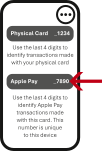
Step 5
Use the 4 digit Apple Pay number when claiming your refund
If you paid using Google Pay you'll need the last 4 digits of your VIRTUAL CARD number - this is different to your PHYSICAL CARD number! Please follow these step-by-step instructions to get your 4 digit number:
-

Step 1
Open the Google Pay App
-

Step 2
Tap the card you used to make the payment
-

Step 3
Tap "View card details"
-
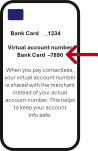
Step 4
Find the virtual card number listed below your physical card number